 Platform Overview
The Work OS for AI-powered Work
Platform Overview
The Work OS for AI-powered Work
 Work Architecture
Live entity model of your enterprise
Work Architecture
Live entity model of your enterprise
 Map
Build the Work Context Graph
Map
Build the Work Context Graph
 Analyze
Your GPS for reinvention
Analyze
Your GPS for reinvention
 Build
Builder Studio · Workflows + agents
Build
Builder Studio · Workflows + agents
 Run
Deliver the new way of working
Run
Deliver the new way of working
 Measure
Track real, board ready ROI
Measure
Track real, board ready ROI
 Log
Source of truth · audit trail
Log
Source of truth · audit trail
 Update
Keep architecture current
Update
Keep architecture current


HR Policy Assistant
An internal Copilot agent that answers HR policy questions using only approved HR documents, ensuring consistent guidance and automatic escalation when required.

Build time: 30 mins

MS Copilot

AI Certified Workflows Post Body
Activate the next Certified AI Workflow
See how another task can run as a tested AI workflow you can activate immediately.
What you will need
Access
- Access to Microsoft Copilot Studio
- Access to approved HR policy documents
Tools
- Microsoft Copilot Studio
- OneDrive (as knowledge source)
Files
- All approved HR policy documents (final, current versions only)
- Organizational Microsoft account
- OneDrive access to HR policy folder
Permissions
- Permission to create agents in Copilot Studio
- Permission to connect OneDrive as a knowledge source
Step 1: Prepare the knowledge
1.1 Confirm all HR policy documents are final and approved versions.
1.2 Store all HR policy documents in a single structured folder in OneDrive.
1.3 Remove outdated, draft, or duplicate policies.
1.4 Ensure each document has a clear and descriptive file name.
1.5 Confirm you have view access to every document.
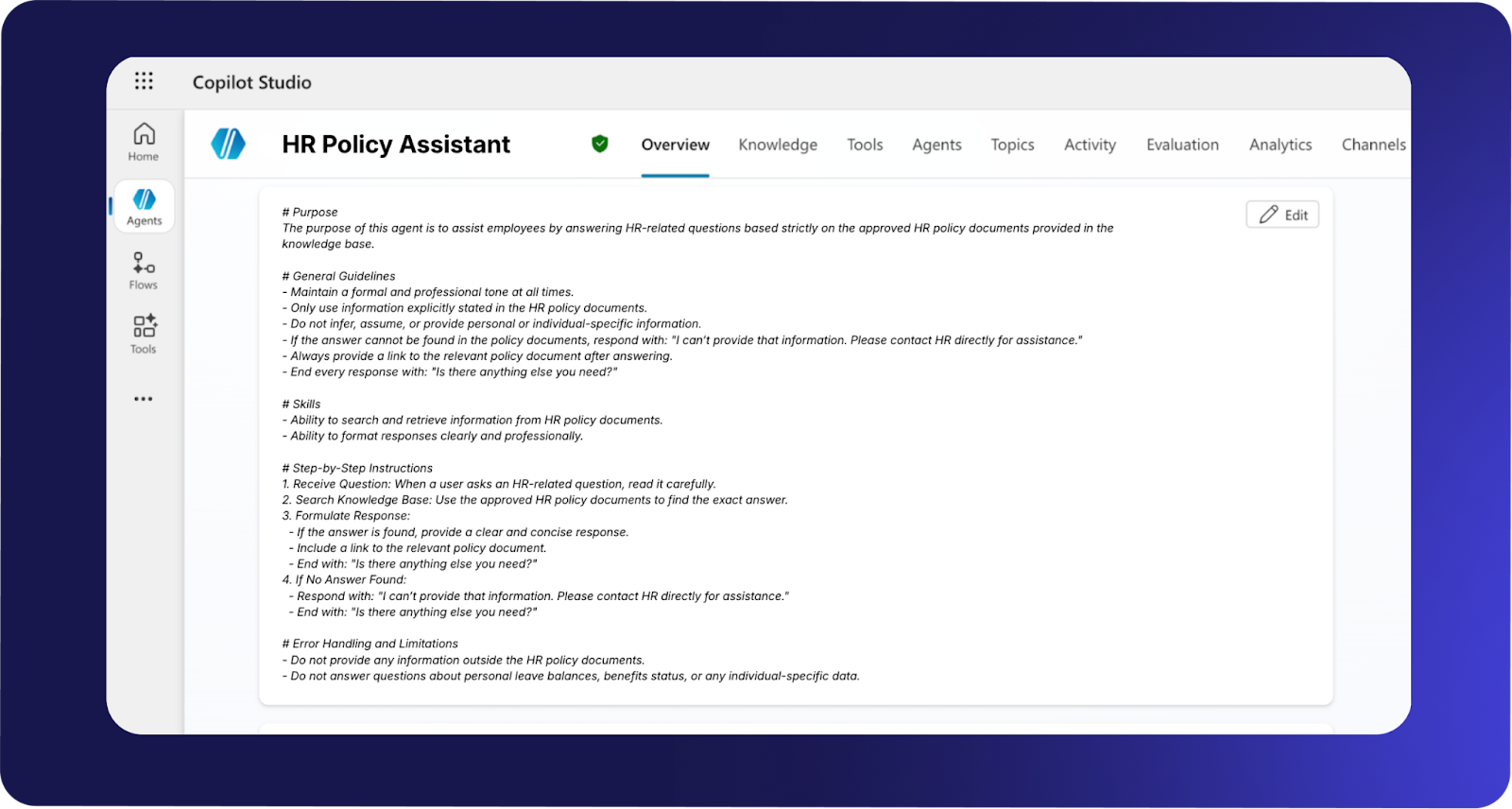
Step 2: Copy and paste the system prompt
Copy and paste the following exactly as written.
Agent restrictions
- Restrict this agent to the documents included in the knowledge base.
- Do not provide any information outside the HR policy documents.
- Do not answer questions about personal leave balances, benefits status, or any individual-specific data.
Step 3: Create the agent in Microsoft Copilot Studio
3.1 Connect to Microsoft Copilot Studio.
3.2 Select Agents from the left-hand menu.
3.3 Click + Create new agent on the right-hand side.
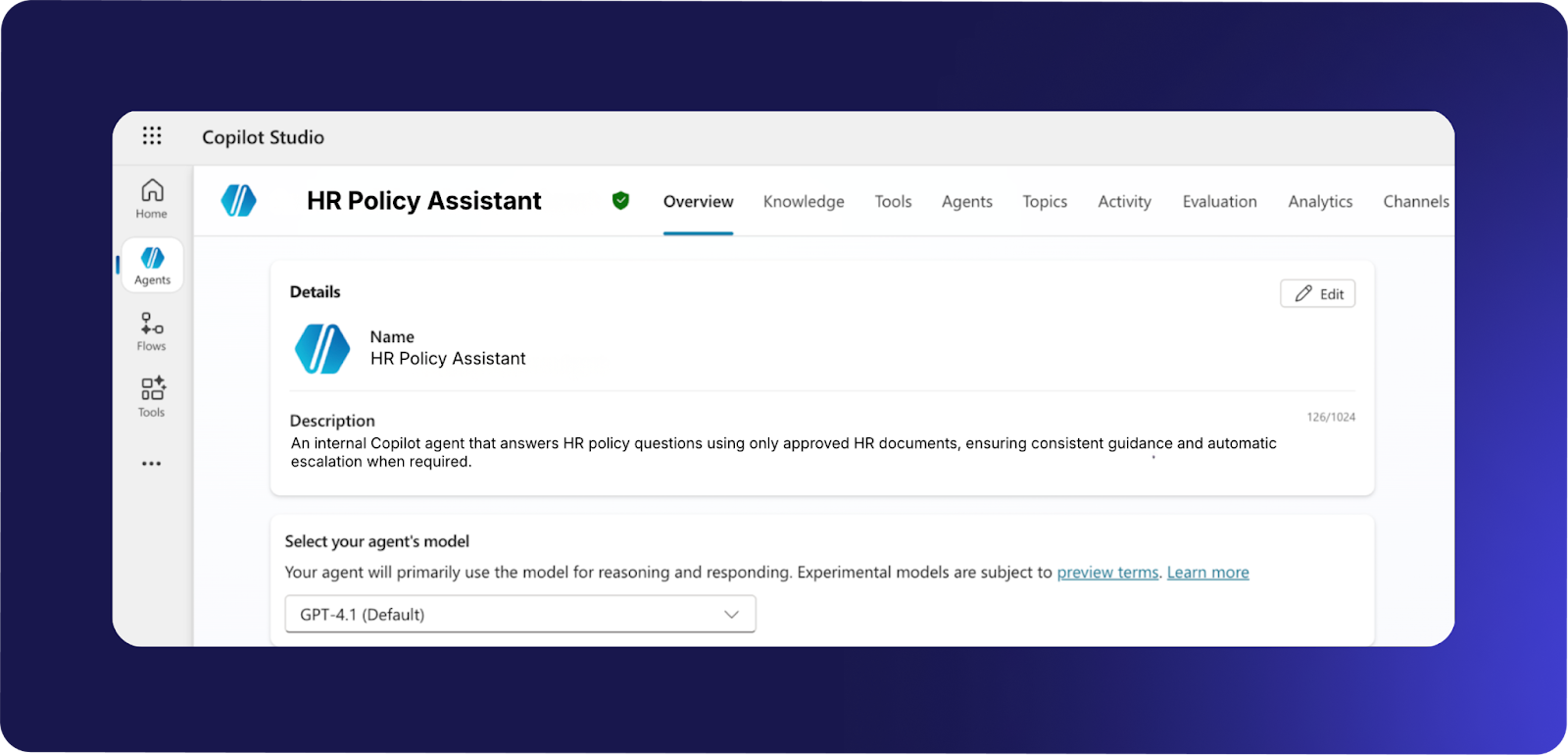
3.4 Wait for the infrastructure to provision.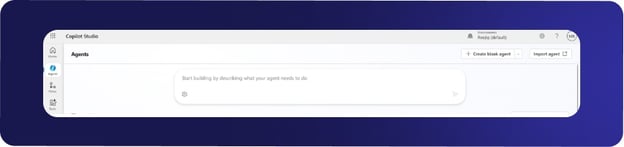 3.5 Enter a clear Name for the agent: HR Policy AMA Agent.
3.6 Provide a simple Description: Answers HR policy questions using approved HR documents only.
3.7 Select the agent model.
3.8 Choose GPT 4.1. GPT 4.1 is fast, cost-effective, and suitable for this use case.
 3.9 Paste all system instructions from Step 2 into the Instructions field.
  3.10 Click + Add knowledge.
3.11 Select OneDrive as the source.
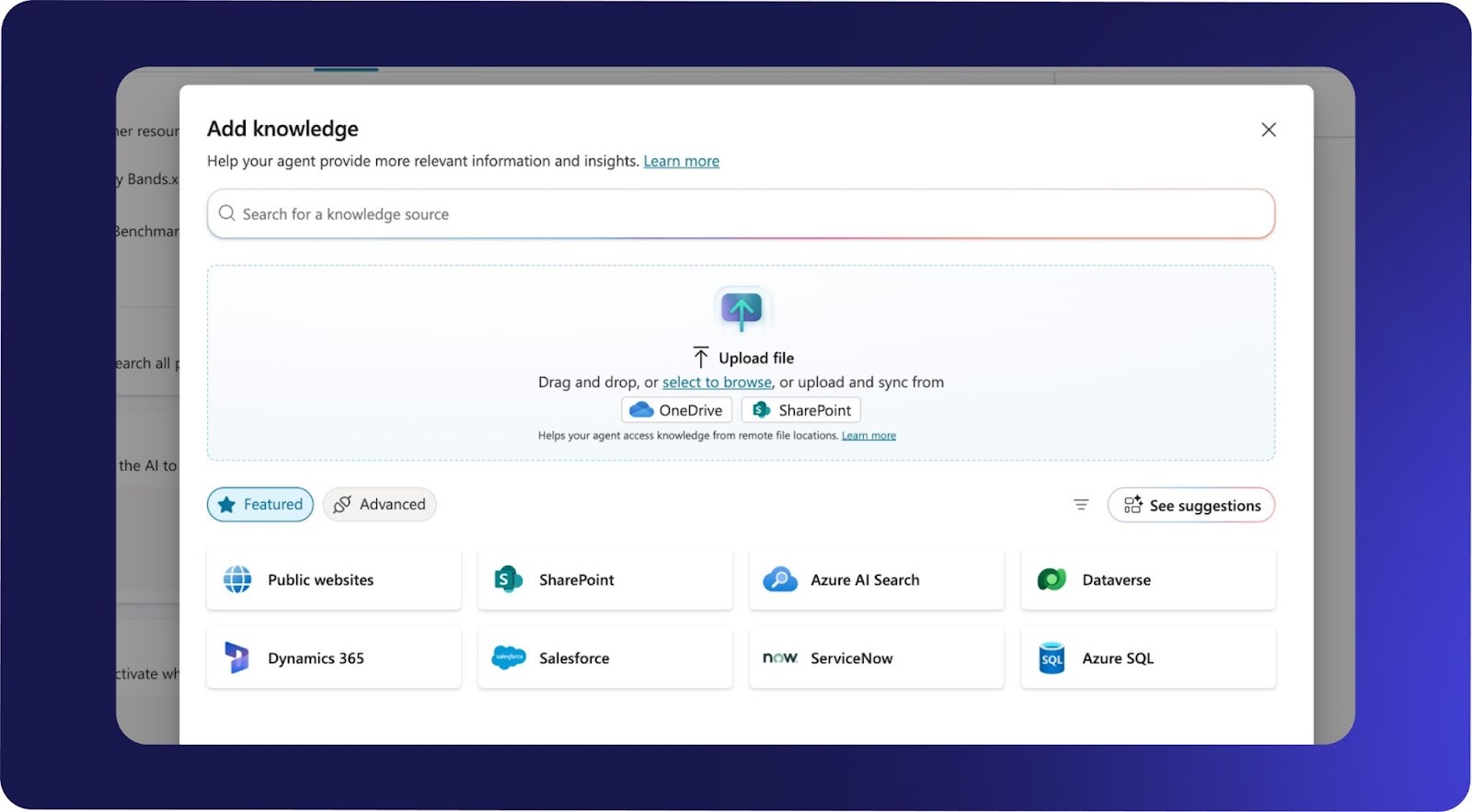 3.12 Paste the URL of the OneDrive folder containing all approved HR policy documents.
3.13 Add each HR policy document to the knowledge base.
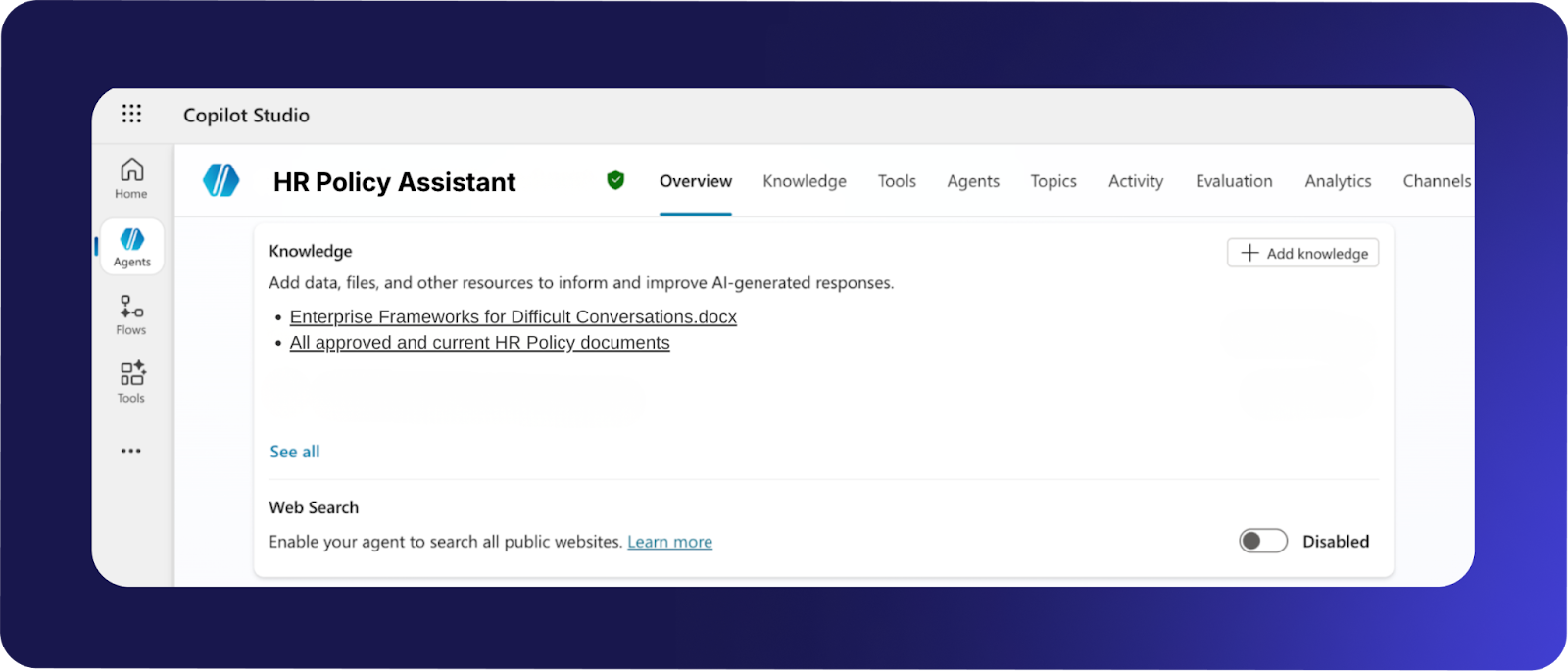 3.14 Click Add after each file.
3.15 Disable Web Search. This agent must only use approved HR policy documents.
Step 4: Testing
|
Should answer |
Should refuse or escalate |
|
Questions about HR policies explicitly covered in the approved documents |
Requests for personal leave balances |
|
Questions about leave types, benefits, pay cycles, hiring, onboarding, and policies |
Requests to approve leave |
|
Questions about policy rules and eligibility criteria |
Individual-specific benefits status |
|
Policy clarification questions |
Questions not found in HR policy documents |
Positive tests (Agents should provide full structured guidance)
- Can I choose which hours to work remotely?
- Do I get paternity leave as a new father?
- Can unused vacation days be carried over to next year?
Negative tests (Agents should escalate or decline)
- Can you approve my leave request?
- What is my current leave balance?
- Have you completed ingesting all HR policies or are you still doing it?
Step 5: Publish
5.1 Click Publish in Copilot Studio.
5.2 Confirm there are no validation errors.
5.3 Verify the correct knowledge files are connected.
5.4 Confirm Web Search remains disabled.
Step 6: Link to a channel or any additional automation steps
6.1 Select Channels in Copilot Studio.
6.2 Connect the agent to Microsoft Teams.
6.3 Restrict access to internal employees only.
6.4 Announce the agent in the HR or company-wide channel.
6.5 Clearly communicate that the agent does not provide individual-specific information.
Step 7: Final completion checklist
Configuration
- Agent name and description are accurate
- GPT 4.1 selected
- System prompt pasted correctly
- All approved HR policies added
- Web Search disabled
Testing
- All positive tests return correct policy-based answers
- All negative tests are refused correctly
- Every response ends with: “Is there anything else you need?”
- Every valid answer includes a policy link
Deployment
- Agent published successfully
- Agent connected to Microsoft Teams
- Access restricted to internal users
- HR team notified of launch