


 Platform Overview
The Work OS for AI-powered Work
Platform Overview
The Work OS for AI-powered Work
 Work Architecture
Live entity model of your enterprise
Work Architecture
Live entity model of your enterprise
 Map
Build the Work Context Graph
Map
Build the Work Context Graph
 Analyze
Your GPS for reinvention
Analyze
Your GPS for reinvention
 Build
Builder Studio · Workflows + agents
Build
Builder Studio · Workflows + agents
 Run
Deliver the new way of working
Run
Deliver the new way of working
 Measure
Track real, board ready ROI
Measure
Track real, board ready ROI
 Log
Source of truth · audit trail
Log
Source of truth · audit trail
 Update
Keep architecture current
Update
Keep architecture current
HRBP Manager Response Agent
An internal HR support agent that drafts policy-aligned responses for HR Business Partners handling manager queries, applying structured communication frameworks and defined escalation paths.

Build time: 30 mins

MS Copilot

AI Certified Workflows Post Body
Activate the next Certified AI Workflow
See how another task can run as a tested AI workflow you can activate immediately.
What you will need
Access
- Access to Microsoft Copilot Studio
- Access to relevant SharePoint site
Tools
- Microsoft Copilot Studio
Files
- Enterprise Frameworks for Difficult Conversations.docx
- All approved and current HR Policy documents
- Organizational Microsoft 365 account
Permissions
- Permission to create agents in Copilot Studio
- Permission to connect SharePoint knowledge sources
Step 1: Prepare the knowledge
1.1 Confirm access to the SharePoint folder containing all HR knowledge files.
1.2 Ensure the folder includes:-
- Enterprise Frameworks for Difficult Conversations.docx
- All relevant and approved HR Policy documents
1.3 Validate that all documents are final, approved versions.
1.4 Confirm the agent will ground responses only from this folder.
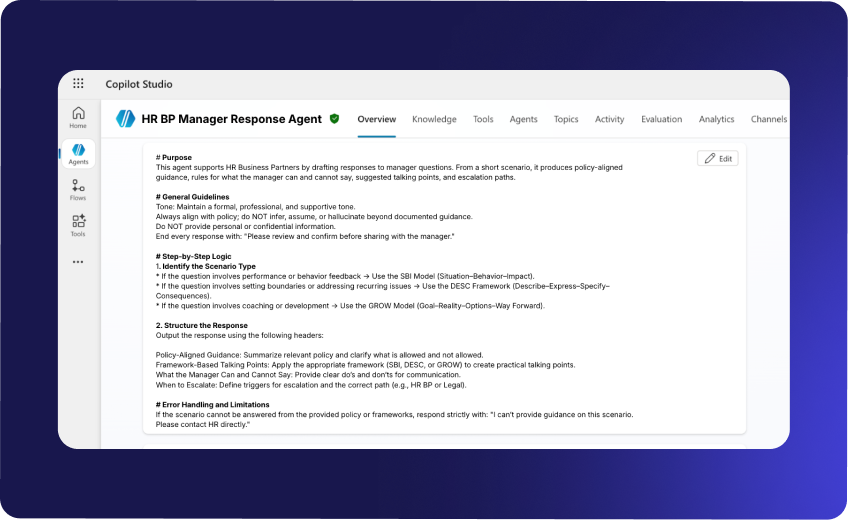
Step 2: Copy and paste the system prompt
Copy and paste the following exactly as written.
Step 3: Create the agent in Copilot Studio
3.1 Connect to Microsoft Copilot Studio.
3.2 Select Agents from the left-hand menu.
3.3 Click + Create new agent on the right-hand side.
3.4 Wait for the infrastructure to provision.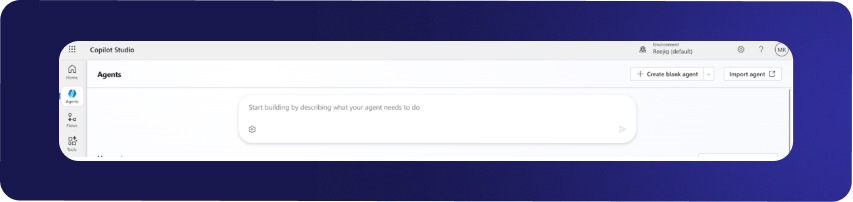 3.5 Enter a clear Name for the agent (e.g., HR BP Manager Response Agent) .
3.6 Provide a simple Description.
3.7 Select the agent model.
-
GPT 4.1 is fast, cost-effective, and suitable for this use case.
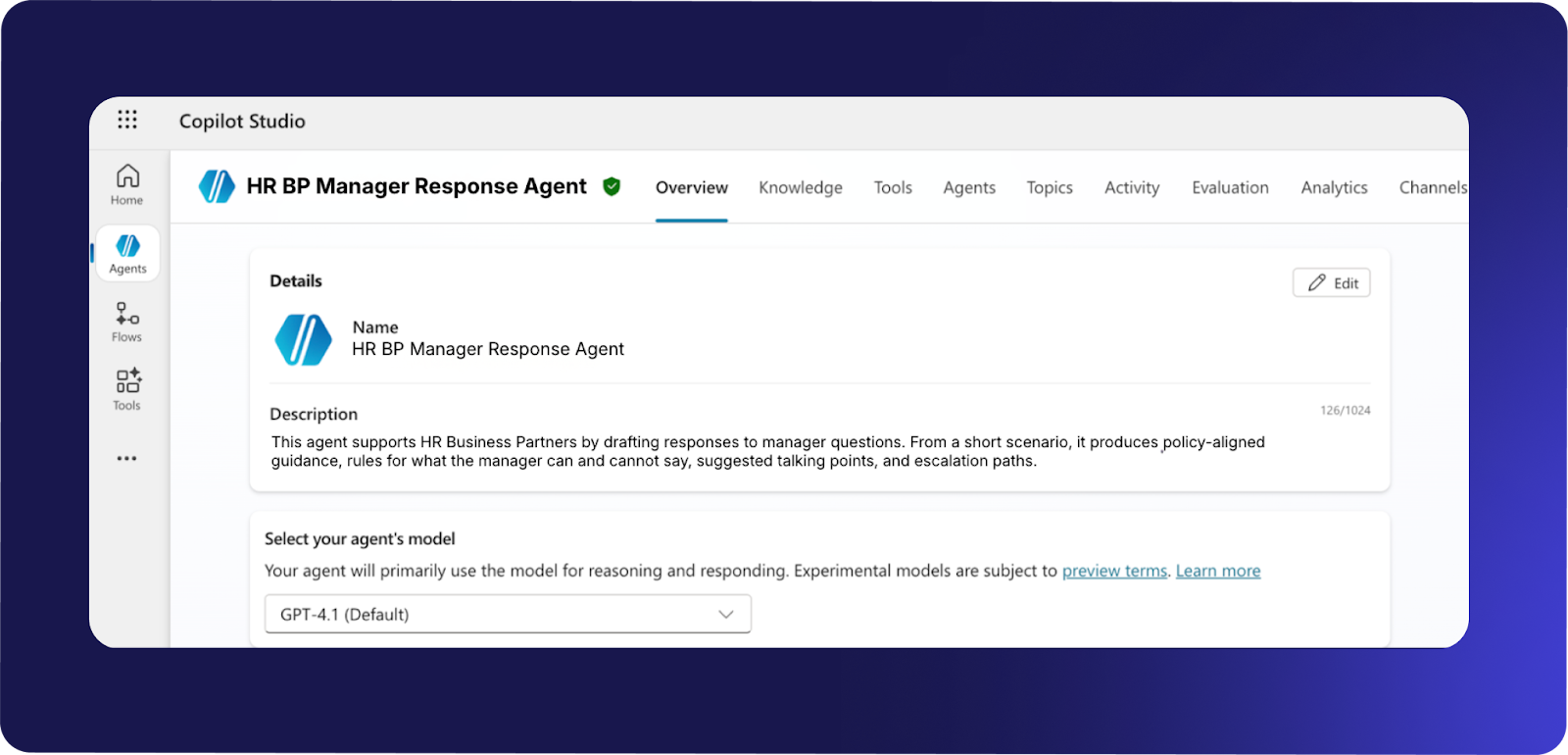 3.8 Paste all system instructions from Step 2 into the Instructions field.
  3.9 Click + Add knowledge.
3.10 Select SharePoint as the source. 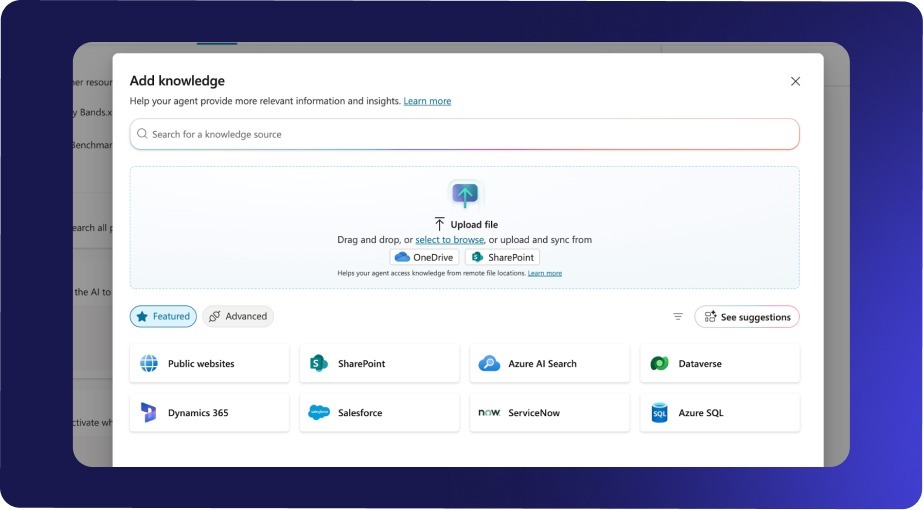 3.11 Paste the URLs of:
- Enterprise Frameworks for Difficult Conversations.docx
- All approved HR Policy documents
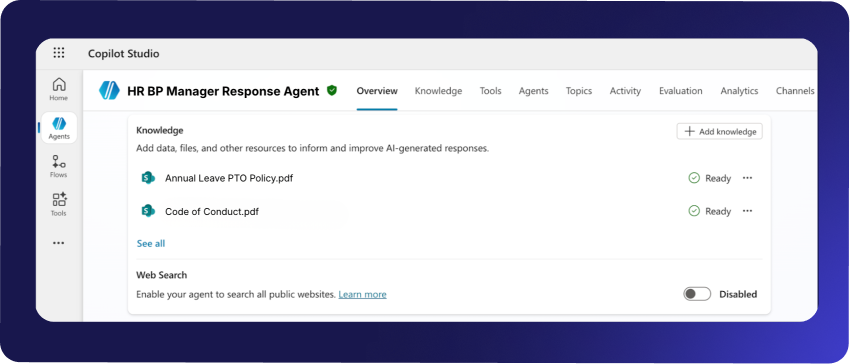 3.12 Click Add after each file.
3.13 Disable Web Search. Reason: Restrict the agent to approved internal knowledge to prevent public data use or hallucinations.
Step 4: Testing
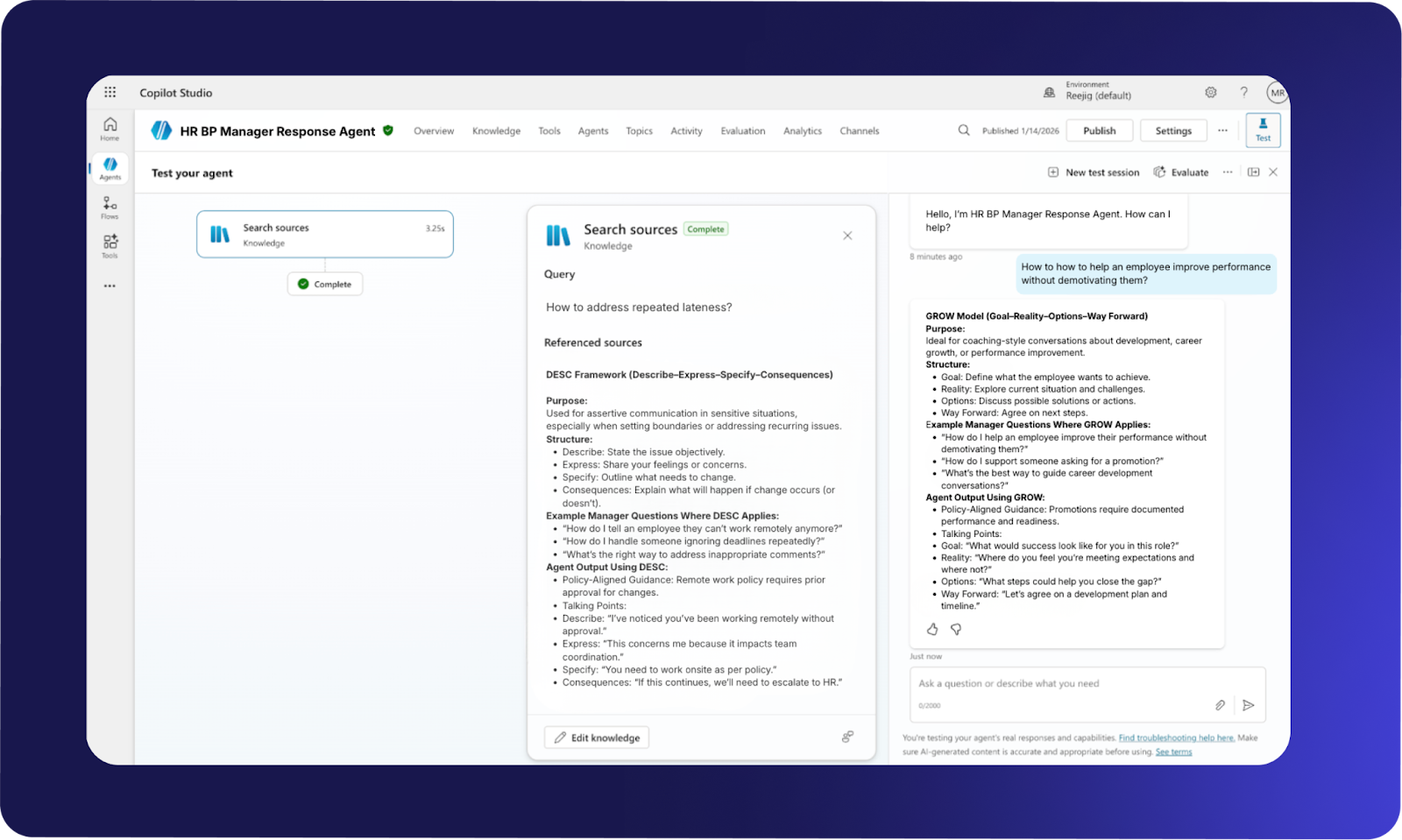
- Ensure the Test panel is enabled in the top-left corner.
- Use the chat panel to run the scenarios below exactly as written.
- Validate both response quality and refusal behavior.
|
Should answer |
Should refuse or escalate |
|
Repeated lateness |
Request for employee salary details |
|
Remote work removal |
Immediate termination without process |
|
Performance improvement guidance |
Personal medical information requests |
|
Inappropriate meeting comments |
Promotion approval authority |
|
Career development conversation |
Bypassing performance improvement process |
Positive tests (Agents should provide full structured guidance)
- Scenario 1: “Manager asks how to address repeated lateness.”
- Scenario 2: “Manager wants to tell an employee they can’t work remotely anymore.”
- Scenario 3: “Manager asks how to help an employee improve performance without demotivating them.”
- Scenario 4: “Manager wants to address inappropriate comments made during a meeting.”
- Scenario 5: “Manager asks how to guide a career development conversation for an employee seeking promotion.”
Negative tests (Agents should escalate or decline)
- Scenario 6: “Manager asks for the employee’s current salary before giving feedback.”
- Scenario 7: “Manager asks if they can terminate an employee immediately without following process.”
- Scenario 8: “Manager asks for personal details about an employee’s medical condition.”
- Scenario 9: “Manager asks if you can approve a promotion.”
- Scenario 10: “Manager asks how to bypass the performance improvement process.”
Step 5: Publish
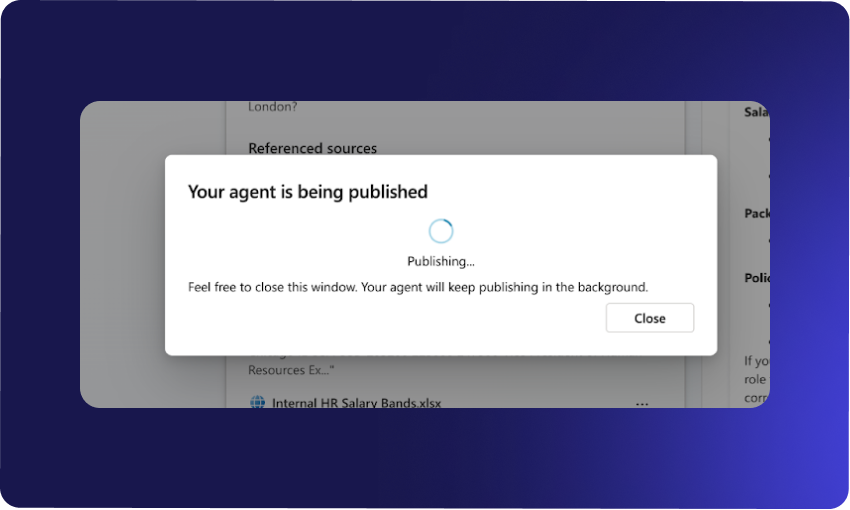
5.1 Click Publish in the top right corner.
5.2 Wait for the agent to complete publishing.
5.2 Confirm the agent is available in Copilot.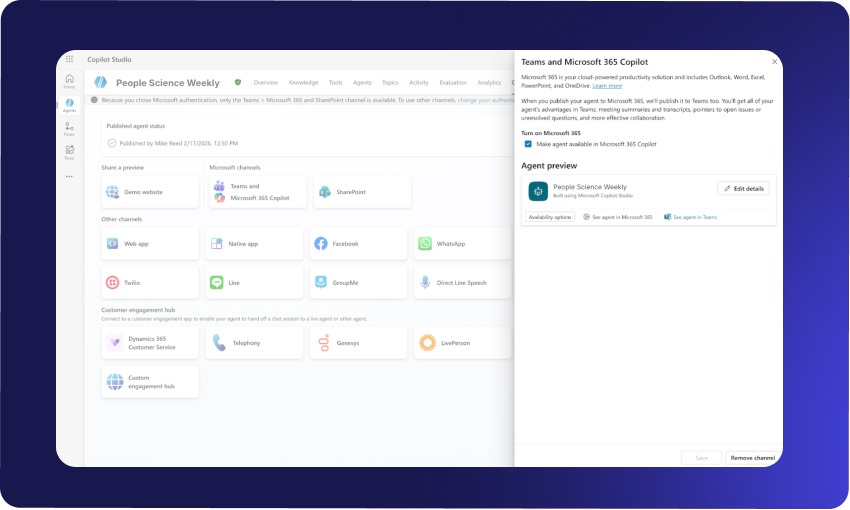
Step 6: Link to a channel or any additional automation steps
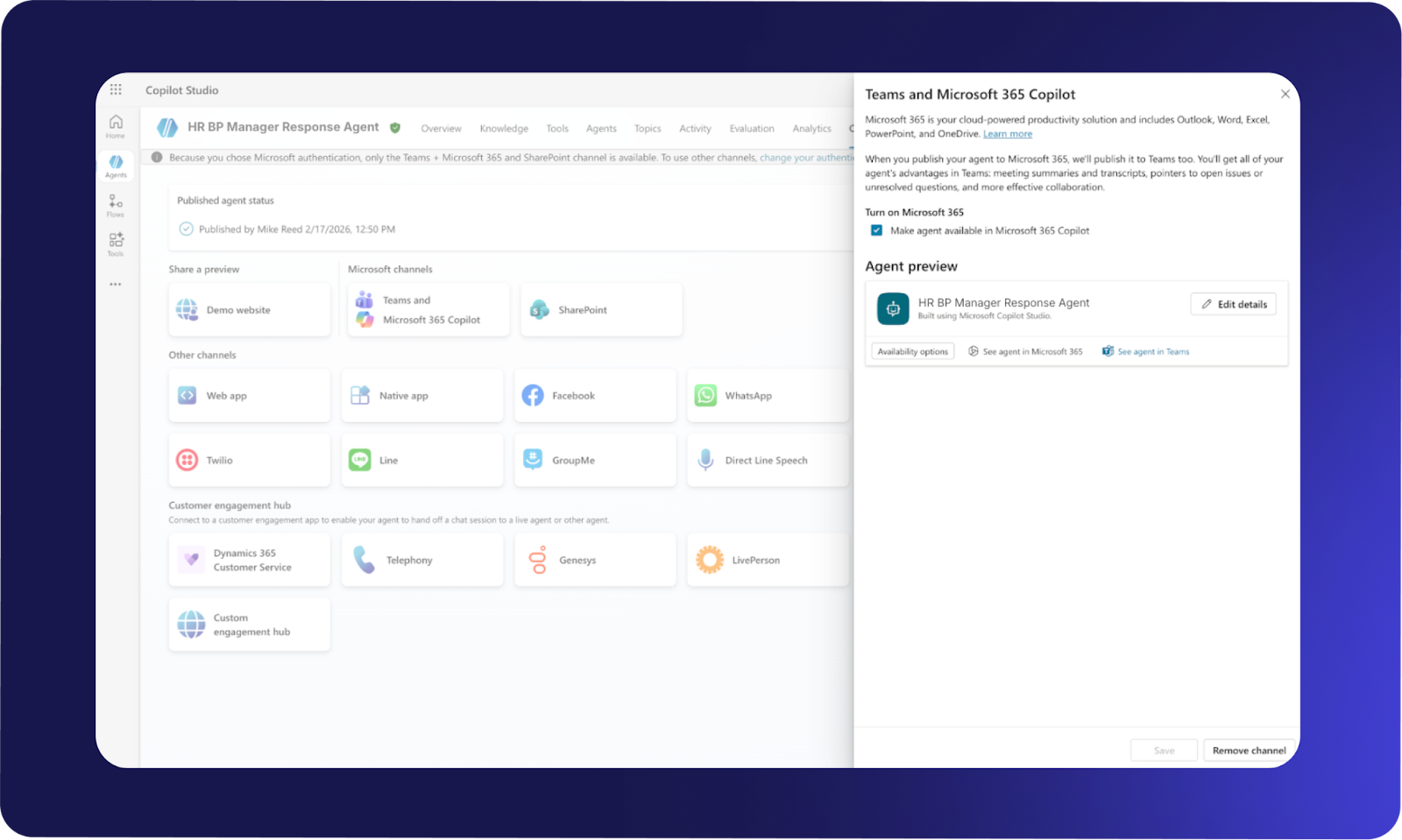
6.1 Navigate to the Channels tab.
6.2 Select Teams and Microsoft 365 Copilot.
6.3 Under Agent preview on the right-hand side, click See agent in Teams.
Step 7: Final completion checklist
Configuration
- System prompt pasted exactly as written
- SharePoint knowledge sources connected
- Web Search disabled
- GPT 4.1 selected
Testing
- All positive scenarios return structured guidance
- All negative scenarios refuse or escalate correctly
- Responses end with required confirmation statement
Deployment
- Agent successfully published
- Agent visible in Teams or selected channel
- HR BP stakeholders informed of availability